
Issues
Turn findings into focused tasks, hand them to agents, and review the result with its original context beside you.
A useful finding should not disappear into a long conversation. Issues turn it into work you can name, delegate, and return to. Keep the issue, the agent, and the evidence together in hob, from the first report through review.
Start with local issues: they need no platform setup. When your work already lives on GitHub, Gitea, Forgejo, or Linear, use the same loop with connected issues.
Capture the work
Open Issues from the tool rail and choose Local. The example project already has three starter issues. Add findings as you work so each can get its own scope and review.
Select New issue (+), write a short title and a description, then choose Create issue. Include what happens, what should happen, and how you will know the task is done. The field above the list is search; it does not create an issue.
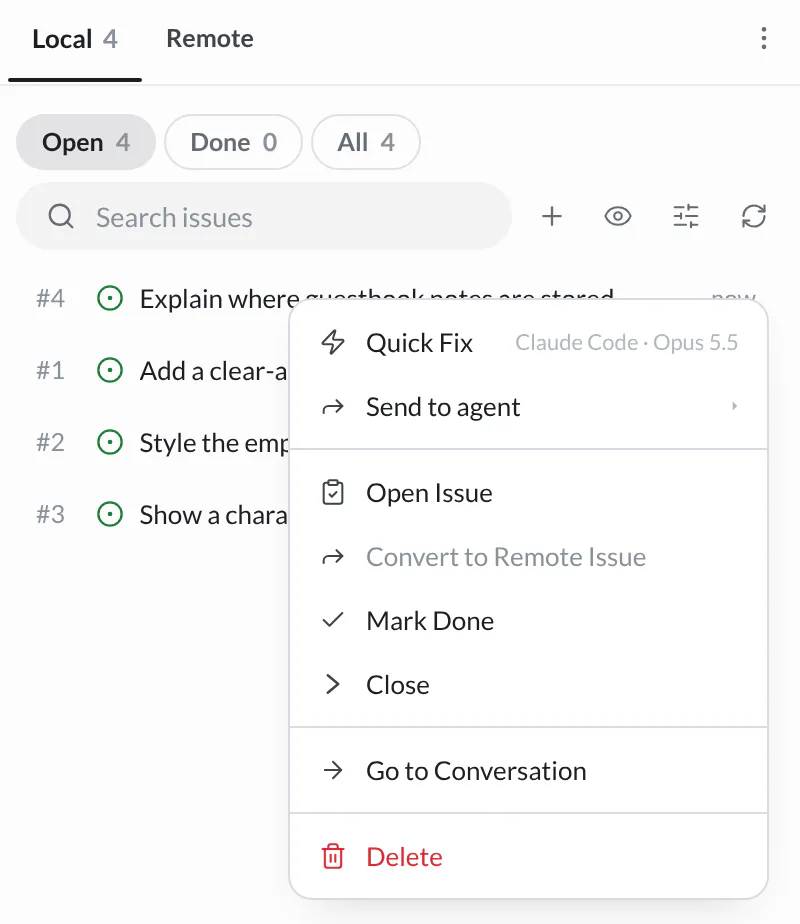
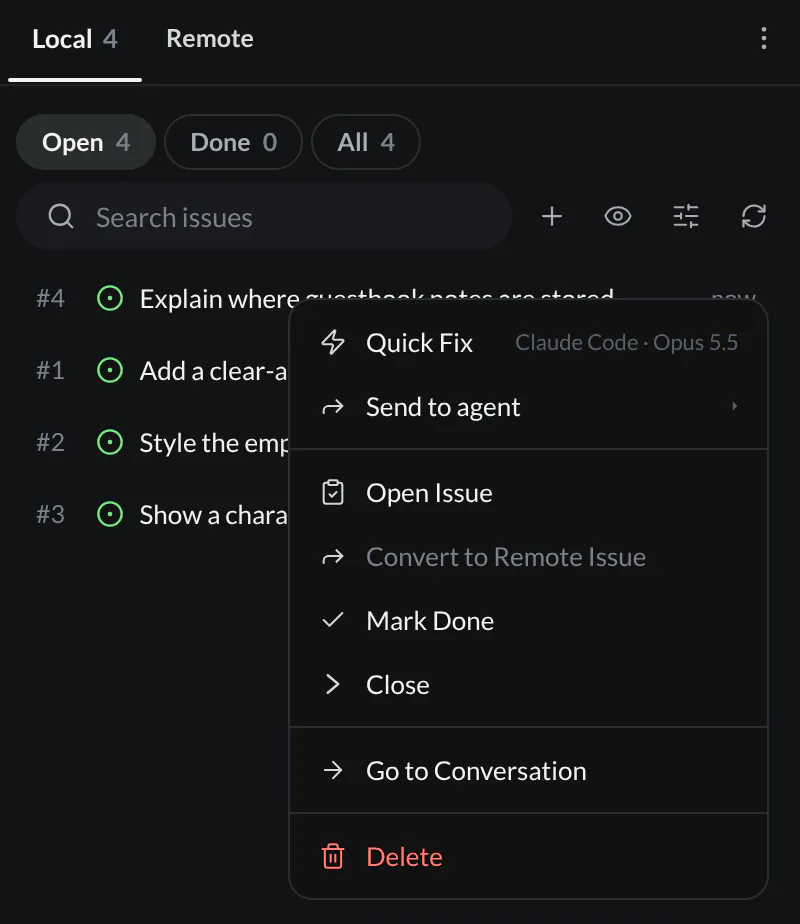
Your agent can record follow-up work too. In this example, reviewing the counter raises a separate task to explain where guestbook notes are stored:
Sort issues with labels
Labels group issues by kind, area, or urgency. A local issue uses labels the
same way a connected issue does. Open the issue and select Add label under
its title, or right-click the issue in a list or on the board and point to
Labels. Choose a label that the project already uses, or type a new name
and choose Create Label. Each choice is saved at once. A local label gets its color from its name, so bug
has the same color on every local issue.
Labels show on the issue rows. To see the issues for each label together, open the list's display options and group by Label.
Local by default
Local issues live in hob's database for this project and are not automatically
committed to Git or posted to a platform. Share explicitly writes a local
issue to your folder under .hob/members/, signed with one of your keys, so
teammates can verify who shared it. Move to and Rewrite to are separate
actions that put it in a connected issue tracker; see
Move an issue to another source.
Handing an issue to an agent
Select a focused task
Select the checkbox beside Show a character counter for notes, then choose Send to agent. hob opens an agent pane with the issue context. Selecting several issues sends that group to one agent; use separate handoffs for independent tasks.
Choose how the agent starts
The issue's right-click Send to agent menu, or the arrow beside Send to agent in its detail pane, lets you choose a backend, Edit prompt first, or Send to open agent. Edit prompt first gives you room to add constraints before work starts. Quick Fix starts immediately with the configured defaults.
Set repeatable issue-agent choices in Settings → Issues & plans.
Review with the issue beside you
Double-click an issue or right-click → Open Issue to read its description in an issue pane. Open it beside the agent when you want to compare the result against the original request.
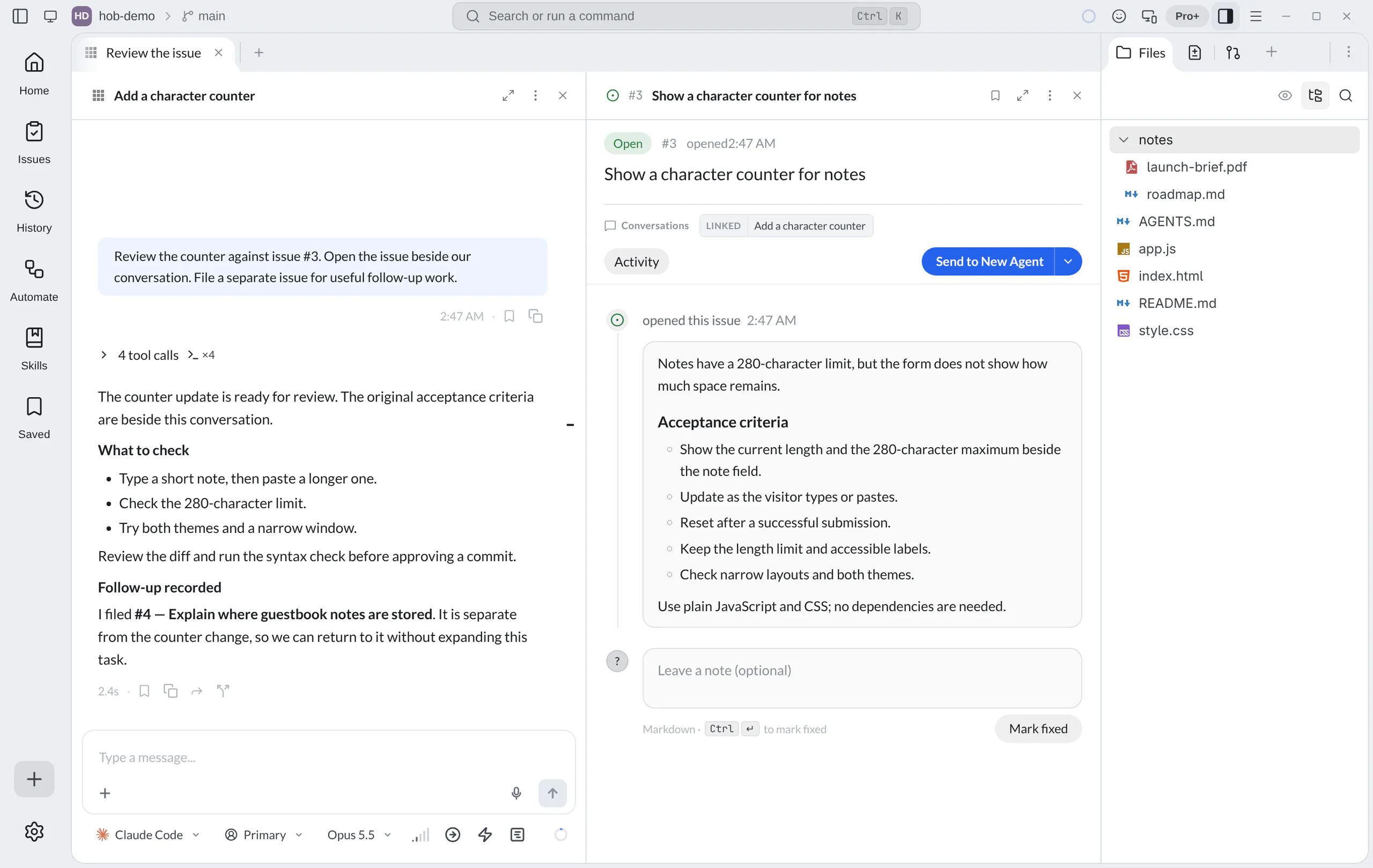
Use the issue as the review checklist: try the change in a browser preview, inspect the diff, and run a check in a terminal. A finished agent turn is a reason to review the result, not evidence that every acceptance criterion passed.
Close the loop
For a local issue, select Mark fixed in the detail pane after reviewing the change. Add a note first to use Mark fixed with note and preserve what you checked. The issue moves to the panel's Closed list; recorded fix details can include the note, model, and commit when available.
The local row menu also offers Mark Done, or Close when you are setting aside the issue without recording a fix. Return to Closed and reopen an issue when there is more work to do; its detail pane has Reopen issue. Search within the current Local/Remote and Open/Closed view to find it again.
See every issue on one board
The Issues view shows the work from every issue source on one board. Select Overview at the bottom of the Issues panel to open it. The board has three columns:
- Open shows the open issues whose work has not started.
- In progress shows the issues whose work is underway, started by a person or by an agent.
- Done shows fixed and closed issues, the most recent first. Select Show more to see older issues.
In progress is a status, not an assignment. An issue can have an assignee and still wait in Open. Drag a card to In progress when the work starts, to Done to close it, or back to Open. The status changes at the issue's source, so the whole team sees it:
- A Linear issue moves to the team's In Progress state.
- A GitHub, Gitea, or Forgejo issue gets the repository's In Progress label.
hob uses a label the repository already has for this, such as
in progress,status: in progress, orStatus/In Progress. If there is none, hob createsIn Progress. If your team uses another label for this, enter it in Settings → Issues & plans → Issue sources → In Progress label. Every project uses it, unless a project sets its own. hob then uses that label as written. - A local issue is marked in progress.
A move never changes the assignees. To take an issue, right-click its card and choose Assign…. Each card shows the avatars of its assignees. An issue that an agent works on shows a spinning mark. It stays in In progress until the agent finishes, or until you choose Unassign, which stops the agent. If the source refuses a change, the card moves back and hob tells you why.
Select a card to open the issue. Right-click a card, or press Shift+F10, for the same menu as in the Issues panel. The source chips, the Labels filter, and search change only what this board shows. They do not turn a source on or off for the project; use the Issues panel's options menu for that.
Follow the conversation
Issues created or linked through an agent can retain their conversation context. Select a chip under Conversations in the issue pane to return to the linked turn. The row's Go to Conversation action is another route back; an assigned agent and the conversation that originally raised the issue may be different.
History also connects conversations with their issue and commit artifacts. These links explain where work came from and what it produced. Use the actual diff and checks to judge the change.
Local and remote issues
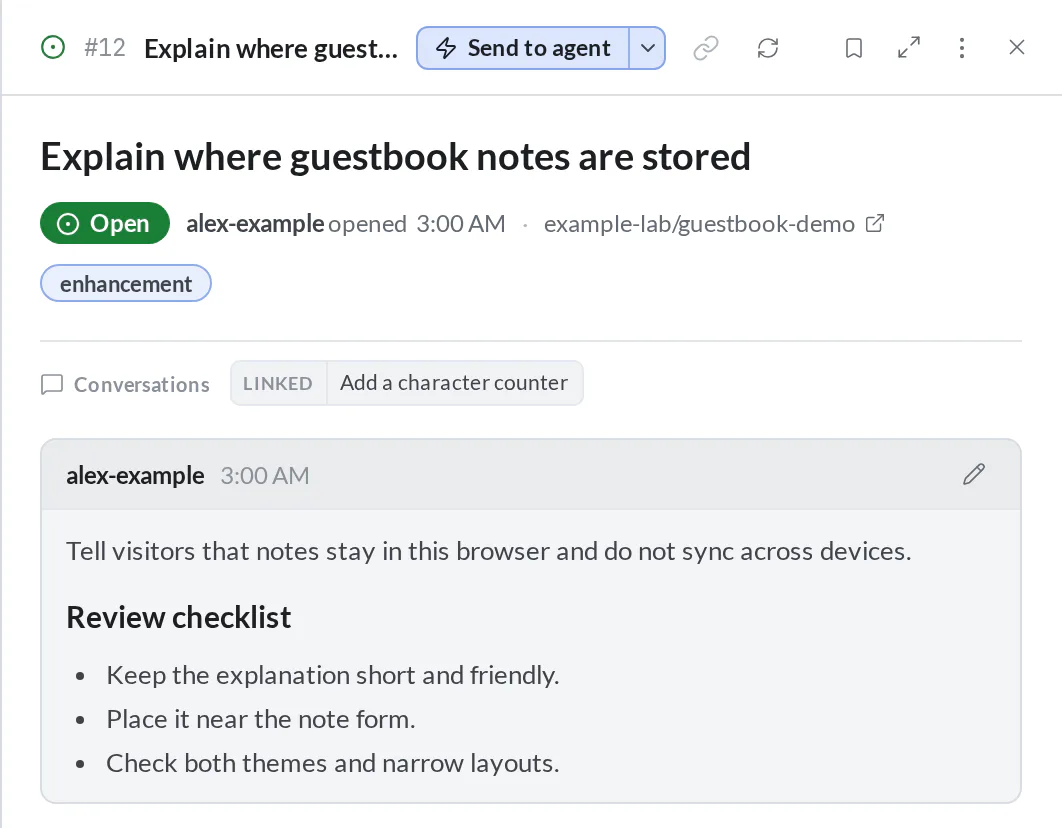
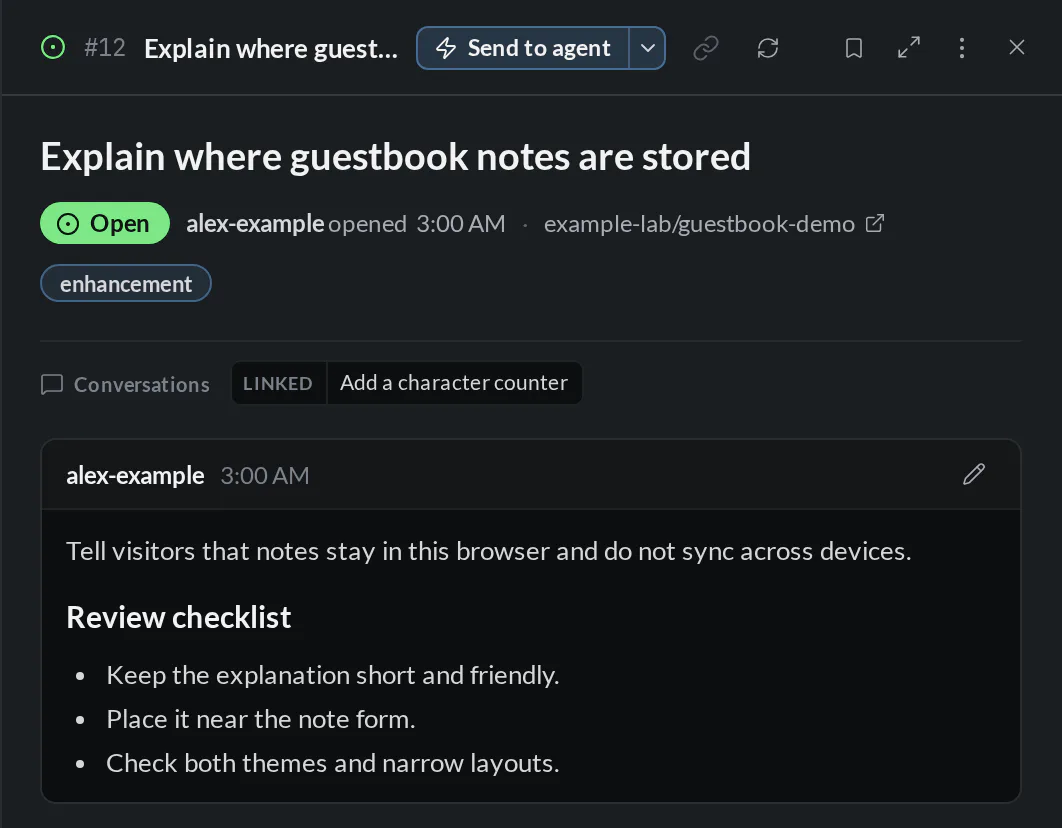
For issues that already live on GitHub, Gitea, Forgejo, or Linear, choose Remote in the same panel. Open an issue to read its description, labels, comments, and linked hob conversations. You can edit its title or description, change its labels and assignees, add a comment, close it with an optional comment, or reopen it from this pane.
A Linear team is an issue source of its own. Its issues show their Linear keys,
such as ENG-123. Closing moves an issue to the team's first completed state,
and reopening moves it back to a not-started state. A Linear issue has one
assignee.
Set up credentials in Settings → Git & environments → Git integrations.
Use a GitHub token or the Forgejo / Gitea tokens entry for your server;
Import Tokens can import existing gh or tea credentials. A project can
use its own Git API token instead of the global one. For Linear, add a personal
API key under Linear API keys; hob saves it for the workspace that the key
belongs to.
The project's detected origin repository is included automatically. To bring in related repositories or a Linear team, use Settings → Issues & plans → Issue sources → Additional issue sources in project settings. For a Linear team, choose Linear team, connect an API key if you have not added one, and pick the team. When creating a remote issue, check the Create in destination; it lets you choose among configured sources. Connected reads and updates use those credentials and the platform's permissions.
The Send to agent options work here too. Assigning an agent in hob tracks the work inside hob; it does not change the issue's assignees on the platform. Use the assignee button in the issue pane for that.
Move an issue to another source
An issue can start in one place and belong in another: a local note that the team should see on GitHub, or a GitHub issue that is really one team's Linear work. Right-click an open issue, or use the ⋮ menu in its issue pane, and choose one of two actions:
- Move to moves the issue as it is. The new issue gets the same title, description, and labels. Labels that the destination does not have are created there. An issue in progress starts there too. Assignees do not move, because each source has its own accounts.
- Rewrite to gives the issue to an agent, which writes it up again at the destination. Use it to turn a rough local note into a full issue. The agent does not start the work or take the issue.
Either way, the old issue closes as Moved, with a note that names the new issue. A moved issue does not count as fixed in Stats.
To move or rewrite several issues, select them in the Issues panel and choose Move to… or Rewrite to… from Actions. Move to keeps each issue as its own issue. Rewrite to asks whether the agent writes One combined issue or One issue each.
Work on several issues
Hand off separate issues to separate agent panes when the tasks are independent. Keep their titles specific so you can follow the work from workspace tabs and Home. Use worktree workspaces for parallel writers that need separate checkouts, or pair an implementer with a reviewer who reads the change in the same checkout.
Parallel agents explains provider choice, messaging, and how to hand context from one agent to another.
For agents
Agents can create actionable issues while reviewing, take on existing tasks, and link the work they produce. They use the same project issues you see in the panel, so follow-up work stays discoverable after the conversation ends.
hob issue create --local --title "Explain where guestbook notes are stored" \
  --body "Explain that notes stay in this browser and do not sync across devices." \
  --labels docs
hob issue list
hob issue list --label docs
hob issue edit --local 3 --add-label ux
hob issue start 3
hob issue complete 3 --comment "Reviewed the counter and recorded the checks."
A local issue takes any label name. Issue creation files the issue immediately and returns its exact project-bound link. The agent includes that link in its reply so you can reveal the issue. Opening an issue pane is a separate action, taken when you ask to view it:
hob pane open issue --local-id 3When you ask to see every issue at once, the agent opens the board:
hob open view issuesFor connected issues, use the remote commands and an explicit source when needed:
hob issue view 12 --source origin
hob issue comment 12 --source origin --comment "The change is ready for review."
hob issue edit 12 --source origin --add-label needs-review --assignees alice
hob issue close 12 --source origin --comment "Reviewed and verified."
hob issue view ENG-123
A Linear key such as ENG-123 names its team, so it needs no --source.
create, edit, comment, close, and complete can attach additional
contributing conversations with repeatable --link-pane <pane-id> flags.
When an agent takes a connected issue, it marks the work as started and takes the issue if nobody has it. Each command changes one thing:
hob issue start --remote 12 --source origin
hob issue edit 12 --source origin --add-assignee @me
@me is the account that the source's token signs in as.
To move an issue to another source as it is, or to close an issue that you wrote up again elsewhere, use these commands:
hob issue move --local 3 --to origin
hob issue close --local 3 --moved-to https://github.com/example-lab/guestbook-demo/issues/12
A moved issue closes as Moved, not as done.
hob link issue 12 or hob link issue --local 3 links your current turn, and
any --link-pane panes, to an existing issue without changing it. See the
CLI reference for targeting by URL, repository, or
source. Keep local completion distinct
from closing a remote issue.
See Keyboard shortcuts for issue-panel bindings. Local and remote actions follow their respective source.
Next
Last updated on 10/11/2026