
Browser previews
Try your app or any site in a real browser pane beside the agent, reload local files, and keep preview-server setup with the workspace.
When a change is ready to try, bring the app into the conversation. A web pane is a real browser inside the desktop app. Use it to try an app, review a generated page or mockup, or work on a site with an agent while its explanation stays in view. You can open a local HTML file with no development server, or connect the pane to the server your project already uses.
Web panes need the hob desktop app. The browser IDE and hob mobile show a notice in their place. To have an agent click, type, and check a page while you watch, see Agents on web pages.
Open a page beside your conversation
Choose Browser from a new-pane launcher, then enter a URL in the address field. Use your app's actual address, such as the localhost URL printed by its development server.
For an HTML file, open it from Files, then choose Pane actions → Open
rendered in web pane in its source pane. This works well for the
example guestbook: hob serves
index.html for you, so it needs no install or server command.
Ask your agent
Back and Forward move through the pane's history; hold either button to choose an entry. The pane has one history: the toolbar, your mouse's back and forward buttons, the page's own navigation, and an agent's steps all move through it. Refresh becomes Stop while a page is loading. Expand pane gives the page more room without losing its place in the workspace. Bookmark the pane to return to it later.
When a page tries to open a new window, hob asks before it opens a new web pane. Web panes do not download files.
Inspect requests with an agent
Use web pane robot menu → Network control, next to Pane access, to let an agent inspect and hold requests from that pane. Network control starts off. Only you can change it. A persistent badge and banner show when it is on.
Read requests first when the click is safe, such as opening a review page. For a click that commits an action, an agent can arm a 15-second discovery hold. Discovery is always a dry run: requests are dropped, never released. Its banner shows the live count, time left, and Drop all. Turning Network control off also drops discovery requests. Reload afterwards if the page has stopped.
An agent can use a discovered request as the pattern for a narrow hold. Each matching request has its own ID and 60-second deadline. Unmatched requests continue. Narrow holds stay armed until disarmed, for at most five minutes. Deadlines and disarming drop requests. Turning Network control off continues narrow requests unchanged. The banner states this before any request is held.
Both modes inspect XHR and Fetch by default. Classic form submissions need an explicit Document type. A request-loop guard keeps the list bounded and drops excess matches. No count limit can ever cause a request to be sent.
For a narrow hold, the agent can prepare changes to individual fields. Review Before and After in the banner, then choose Confirm release to send them. Discard edits keeps the original request held. The countdown keeps running while you review. Turning Network control off sends the original body of a narrow request, even when edits are pending.
Agent commands for Network control
hob web net <pane> --method POST
hob web net <pane> --id 12 --body
hob web net hold <pane> --all
hob web net show <pane>
hob web net disarm <pane>
hob web net hold <pane> --like 12
hob web net hold <pane> --url 'https://example.com/pay*' --method POST --field amount=
hob web net drop <pane> <id>
hob web net release <pane> <id> --set amount=1000
hob web net history <pane> --since 5m
Use --type Document for a classic form, or --type XHR,Fetch,Document to
include all three types. Read hob web help networks for filters and limits.
Authorization, Cookie, Set-Cookie, card-shaped numbers and labelled security
codes appear as [redacted]. The read buffer holds 200 requests and is cleared
when Network control is turned off. It captures nothing while off. Closing the pane or restarting hob turns it off and drops held requests.
Resetting a page drops holds and keeps the pane permission.
A release without --set continues unchanged. Dry-run arms cannot release.
Edits support existing, single URL-encoded form fields and top-level JSON
scalar fields. Repeat --set for up to 16 fields. Card numbers, security codes,
credentials, multipart bodies and encoded bodies cannot be edited.
The local redacted audit keeps field changes, actors, times and outcomes after
the pane closes. history works while Network control is off, subject to Pane
access and site rules.
Release a reviewed batch
Use a batch when held calls depend on earlier calls. Arm it with --batch
before the click. The queue then uses the arm's assembly window rather than
the single-request 60-second deadline.
hob web net hold <pane> --url 'https://example.com/api/*' --method POST --batch
hob web net release <pane> <id> --set amount=1000
hob web net release <pane> --all
release --all prepares a review. It cannot approve a batch. Release in
order in the pane opens the same review. Check the request IDs and every
Before/After value, then confirm. Remove unwanted requests, such as unrelated
analytics, before confirmation. A dry-run batch only drops requests in order.
Confirmation freezes that exact list and those edits. Requests arriving later stay held for a new review. Editing a queued request invalidates confirmation. The next request waits for the previous request's response headers. Transport failure, a 15-second response timeout, or HTTP status 400 or higher stops the batch. A sent request stays labelled Sent, with its status or failure; it cannot be put back into the held queue. The remaining requests stay held until expiry. Dropping a queued slot is an explicit decision to skip it.
Assembly lasts at most five minutes for a narrow hold or 15 seconds for discovery. Confirmation starts a separate 60-second release window. The pane shows queue positions, the next request and the earliest expiry or response deadline. Drop all stops the batch and drops remaining holds. Expiry drops; it never sends. Turning Network control off keeps the arm's existing promise: narrow holds continue unchanged, while discovery drops.
The audit links order, confirmed edits and per-request outcomes with one batch ID. A batch orders held requests. It does not replay completed calls, make the sequence atomic, or guarantee that a site will accept an edited value.
Sign-ins and zoom
Sign-ins and other site data persist after you close the pane or restart hob. By default, a web pane uses the project's site data. Web panes in the same project that use project data share it. To use one sign-in in every project, choose Use Global Data in the pane's menu. The page reloads with global data. Choose Use Project Data to change back.
The choice applies to that pane only. Every page in the pane uses the same
data, including a sign-in page on another site. A new pane that a page opens
uses the same data too.
For a local or private address, such as localhost, global data is shared by
every project that opens the same address. After a crash, you may need to
sign in to a site again.
hob removes site data that no page has used for 30 days, for example the data of a local development server that you no longer run. To change the number of days, or to keep all site data, use Settings → Web → Web data retention.
Each pane has its own zoom, separate from hob's interface zoom. Use the Zoom row in the pane's menu, the usual browser zoom keys, or pinch. When the zoom is not 100%, the address bar shows the level; select it to change or reset it.
Local HTML files and saved data
hob serves an HTML file that is inside your project. The page gets its own address for that project and folder, so the data it saves (for example with localStorage, IndexedDB, or cookies) stays after you reload the page or restart hob. Each folder and each project keeps its own data.
The pane's Preview server menu has the same controls as a development server: Start server, Stop server, Restart server, Show server output, and Copy server command. To remove the page's saved data, choose Clear saved data. Saved data stays on the computer that shows the page. If you open the project from another computer, that computer keeps its own data, and Clear saved data clears only the computer you use.
A served page can read every file in its folder except hidden files (such as
.env and .git) and private keys. To serve a site that spans a folder, ask
an agent to run hob serve start <folder>, and serve the smallest folder that
holds the site. Service workers do not run on served pages. The page does not
send its address as a referrer; some requests to other sites, such as fonts or
modules from a CDN, still show its local address as their origin.
An HTML file outside your project, such as a download, opens as a sandboxed page. It has no saved data, and it asks before it reads other files in its folder. HTML from an automation run opens the same way.
Keep file previews up to date
A local HTML preview watches its HTML file automatically. When the agent changes a stylesheet or script too, add those files to the watch list:
- Open the web pane's Pane actions menu.
- Choose Preview server → Configure preview server…. For a sandboxed page, choose Static artifact → Configure static artifact….
- Under Reload when these files change, enter one pattern per line, relative to the served folder, then choose Save.
For the guestbook, use:
style.css
app.js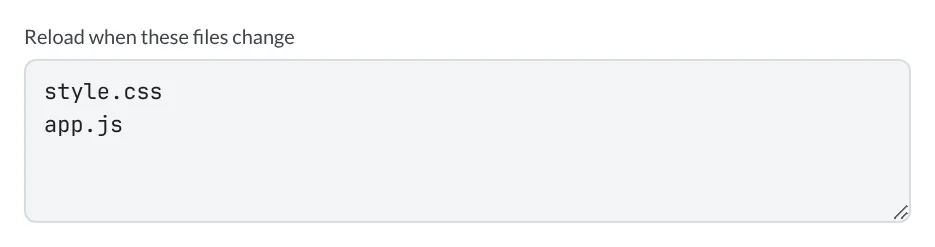
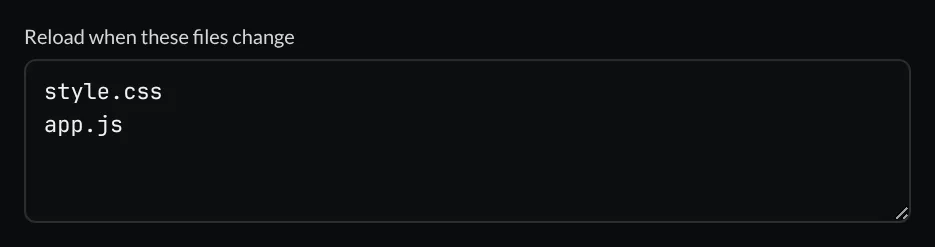
The dialog shows whether live reload is running. Patterns support **, braces,
and character ranges; prefix a pattern with ! to exclude matches. Keep
patterns inside the page's folder, with no more than 64 patterns. If a
sandboxed page tries to read other files in its folder, the dialog asks you
first; choose Allow only for a page you trust.
This is useful beyond apps: an agent can generate an HTML report or mockup, open it once, then refine it while you watch the result.
Save a development-server recipe
For a project that needs a server, hob can keep its start command with the preview. First open the server's intended localhost URL, then choose Pane actions → Preview server → Configure preview server….
Enter the project's real start command and working directory. For example,
a project with a dev script in package.json might use npm run dev from
its root. The guestbook has no such script and does not need this setup.
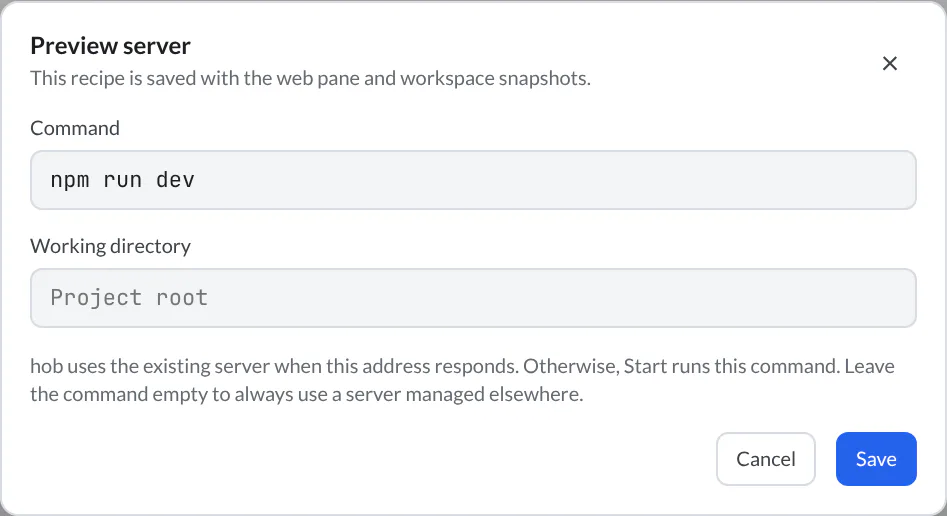
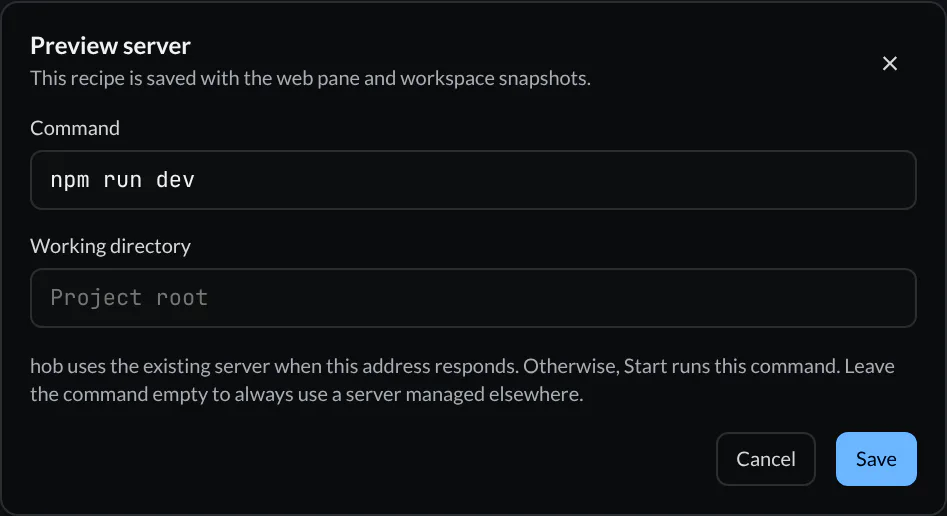
Choose Save, then Start server when you want hob to run the command. If the address already responds, hob uses that server instead of starting another process on the same port. Leave the command empty when you always manage the server elsewhere, such as in a terminal pane.
For a server started by the pane, open Show server output to read its output. The same menu offers Stop server, Restart server, and Copy server command. If startup fails, inspect the output and check the command, directory, dependencies, and expected URL.
Saving the recipe preserves how to start the server; it does not preserve a running process across a hob restart. A restored workspace can bring back the preview and its setup, ready for you to resume the work.
Mark an element for your agent
Choose Mark up (the pencil) in the web pane header, then pick elements and describe the changes you want. Send the notes to an agent as a composer attachment. Web batches include element context without image crops. “Tighten this spacing” has more meaning when it names the element you selected. You can also select text on the page and send it to an agent.
Agents can point in the other direction too. They can read the live page, open a preview, and offer attention links to the detail you should review. See Working with your agent for the character-counter example and the difference between attention, annotations, and walkthroughs.
Choose where links open
The compass control marks a browseable pane: the web pane hob uses as the workspace's target for in-app web navigation. Each workspace has one such target at a time. This is useful when you want incoming links to use a particular pane while another preview stays beside your work.
Mobile view, under Appearance in the pane menu, shows the page in a narrow mobile viewport. Use it for a quick layout check; it is separate from hob mobile, which lets you work away from your desk.
Control what agents can do on a site
Agents can read and operate web panes. You decide where. Site access in the pane menu sets a level for the current site, separately for agents and for automations and scripts: Full access, Read only, or No access. Pane access limits every caller in one pane. Manage all sites in Settings → Web → Site rules. See Agents on web pages for how these rules apply.
For agents
Open the result where the person can try it, and keep the preview current as you edit. For a static file, the CLI accepts comma-separated watch patterns:
hob pane open web --file index.html --watch 'style.css,app.js'For a project with a development server, use its actual URL and command:
hob pane open web --url http://localhost:5173 --command 'npm run dev' --cwd . --startRead a mounted web pane with hob pane view <pane-id>. It returns meaningful
DOM nodes and a snapshot fingerprint. Use those returned references with
hob attention to point to a specific element; take a fresh snapshot if the
page changed. To click, type, or check the page, read hob web --help once;
Agents on web pages explains the
workflow. See CLI for the command reference.
In a generated HTML page, link project files as
hob://file/<project-relative-path>#L<line>, with percent-encoded path
segments. A web pane opens only these hob links, from a click, in a render
pane beside the page.
Next
Last updated on 10/28/2026